Showing posts with label videos. Show all posts

Monday, May 23, 2016

Adding YouTube Videos

YouTube is much easier to add in Canvas and provides new opportunities for enhancing course resources for your students. Below are two ways to add YouTube videos with brief descriptions of how they can be used differently. Enjoy!

FIND YOUR YOUTUBE VIDEO

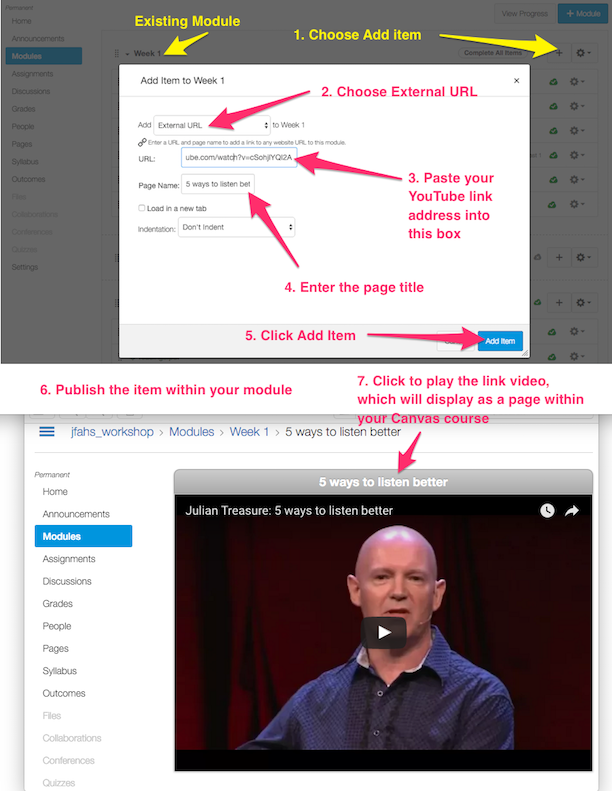
Go to youtube.com or youtube.com/edu and find your video (example 5 ways to listen better: https://www.youtube.com/watch?v=cSohjlYQI2A and copy the URL (web address).

1) ADD THE VIDEO AS AN EXTERNAL URL

This method works well when adding videos as items in a module. For example, you could add YouTube videos in week by week modules and/or add them together in a module named Videos. Students can play these videos without leaving the course.

In an existing module following these steps:


2) EMBED THE VIDEO WITHIN A CANVAS PAGE

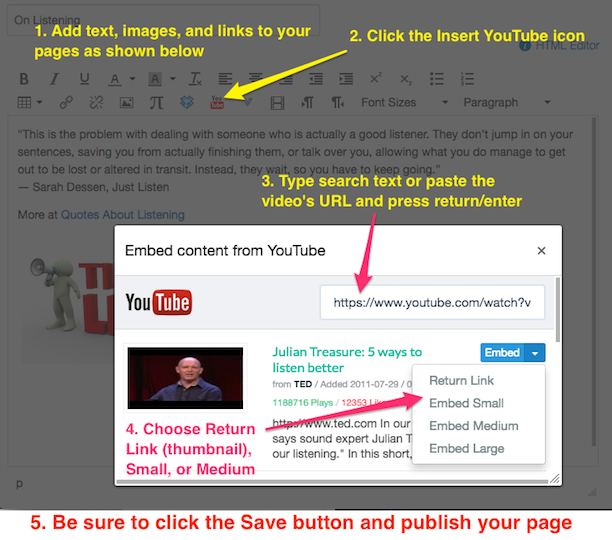
This method works well when mixing up content in a page such as text, images, links, and videos. 

In a Canvas module follow these steps


Proceed with inserting the YouTube video

Choosing Return link displays an embedded thumbnail of the video, which is especially useful for the syllabus description where top of page space is at a premium. Regardless, any of the embedded videos size formats will expand to a larger or full size in your course 


Monday, March 7, 2016

Films on Demand in Canvas

Overview
Instructors can take advantage of the Library's database collections to add streaming videos hosted by services such as Films on Demand (FOD). The LTI (Learning Tools Interoperability) app was designed by Films on Demand to allow instructors to easily find and embed FOD videos into Canvas pages for on and off campus viewing. The videos also play on mobile devices. Because the app connects Films on Demand and Canvas there is no need to worry about ezproxy strings and authentication! 
Find your Video
  • Go to libguides.elmira.edu (Links to an external site.) and click the Databases tab.
  • Go to Films on Demand.
  • Browse for, search, filter, and locate your video (e.g. Technology, Trumpets, and Tunes)
  • You can copy the video title for convenient pasting when inserting the video. 
Insert the Video in a Canvas Page
  • Create a Canvas page, typically in a module
  • Insert the cursor where you want to embed the video. 
  • Choose More External Tools > Films on Demand (see screenshot below)


  • Paste the full title into the Titles box. (You can also search for videos directly within the Canvas app but searching and filtering is limited.)
  • Preview the video if necessary and then click the Embed button. 
  • The video displays in your Canvas page as a gray HTML iframe embed box. 
  • Click the Save button to save changes to your page and to play the video (see example below). 
The video will play on and off campus and on mobile devices. Again, there is no need to fuss with the ezproxy logon string. The usual video options in the controller bar apply (e.g. view full screen, display closed captioning if available, and playback speed.)
Image only - will only play within Canvas at Elmira College